
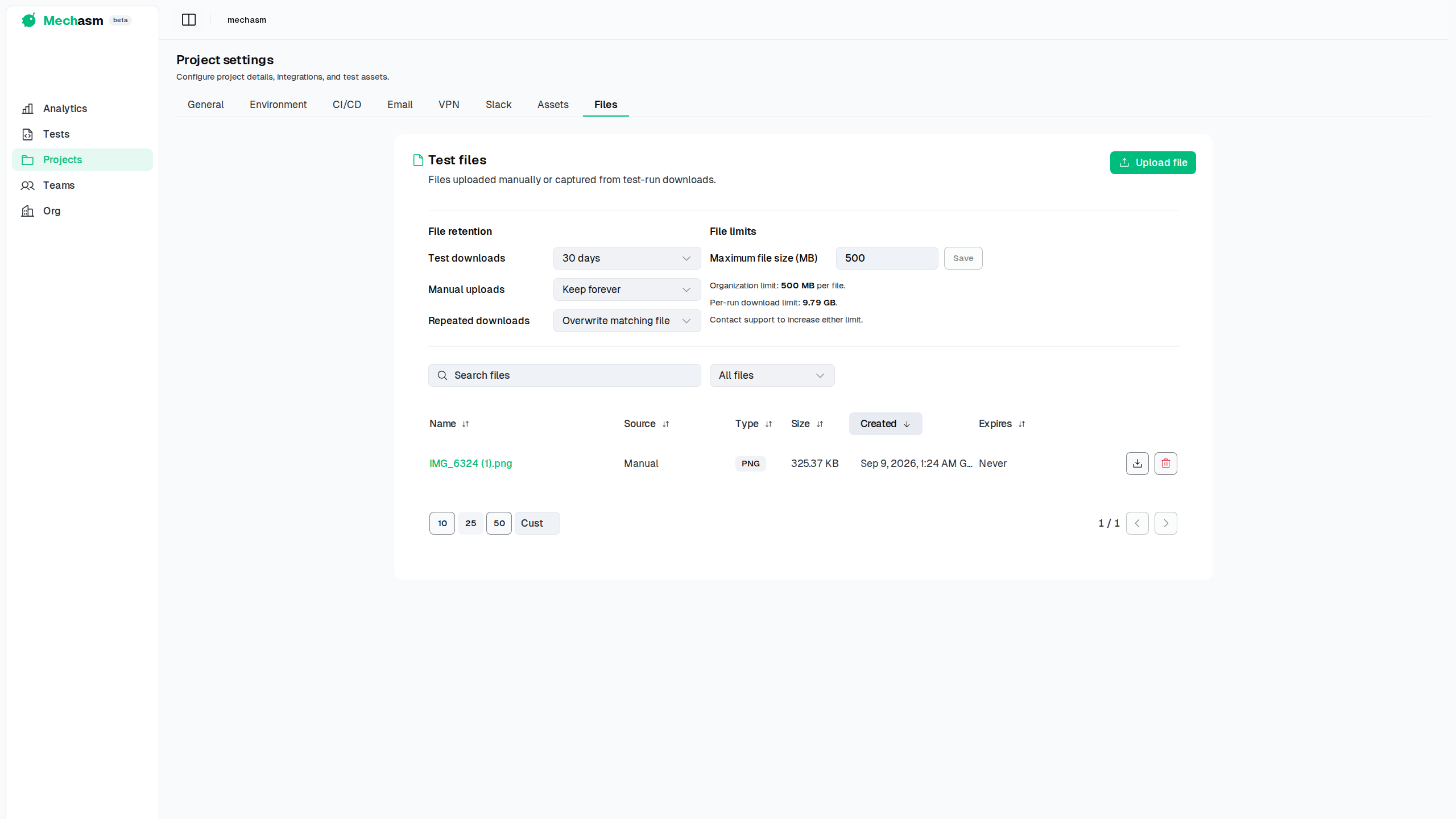
Use Project Settings → Files to keep files that belong to a project. You can upload a file for a test to use, or keep a file that a browser test downloads.
Upload a file
- Open your project and select Settings.
- Open the Files tab.
- Select Upload file, then choose a file from your computer.
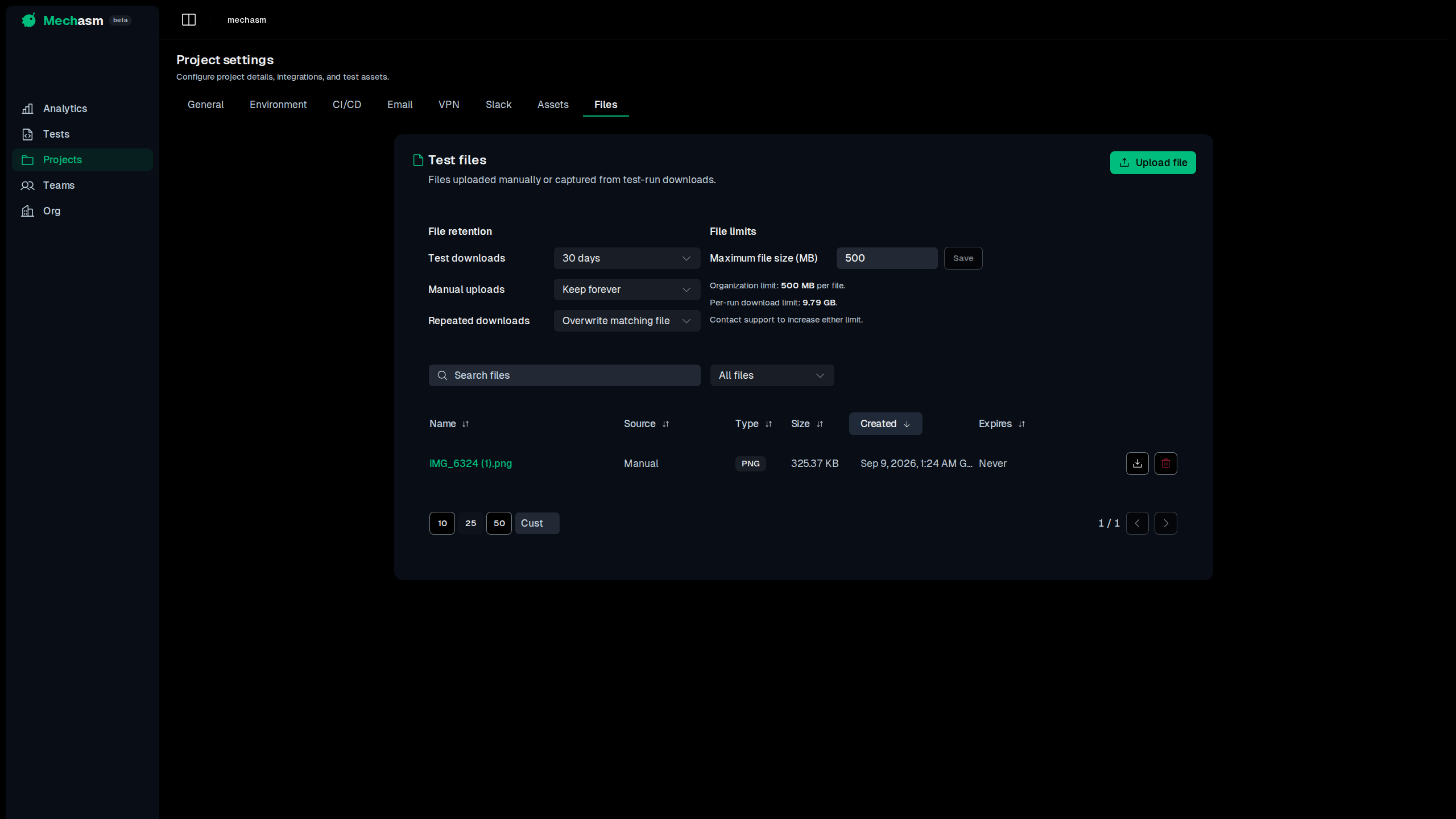
The file appears in the project file list when upload finishes. The current project file-size limit is shown above the list.
Use an uploaded file in a test
On the test create or edit page, select Insert File next to the prompt. Choose a saved project file, then describe the upload step in your test.
For example: “Upload the selected CSV file through the import field and verify the records appear.”
Mechasm makes that saved file available to the browser test. It does not require a local file path in your prompt.
Keep files downloaded by a test
When a browser test downloads a file, Mechasm captures it in Project Settings → Files when it is within the displayed limits. The file row links back to the test run that created it.
Use this for workflows such as exporting a report, downloading an invoice, or downloading a generated configuration file. A captured file can later be downloaded from the file list or used by another test.
Preview and manage files
- Select an image filename to preview it full screen.
- Use the download button to download a stored file.
- Use the delete button to remove a file from the project.
- Search, filter by source, and sort the list to find a file quickly.
Manual uploads show who uploaded them. Captured downloads show their source test run.
Retention, limits, and repeated downloads
File settings apply to files created after the setting changes.
- Test downloads controls how long captured browser downloads are retained.
- Manual uploads controls how long manually uploaded files are retained.
- Maximum file size controls the largest file a test can use or retain in this project, up to your organization limit.
- Repeated downloads controls what happens when a test downloads the same filename again. Overwrite matching file replaces the existing captured file; Keep all copies retains every copy with a unique name.
Files that reach their retention date are removed automatically. Manual uploads set to Keep forever remain until you delete them.