
Team invitations allow you to add new members to your teams in Mechasm. This guide explains how to send invitations, manage pending invitations, and what happens when someone accepts an invitation.
Sending Invitations
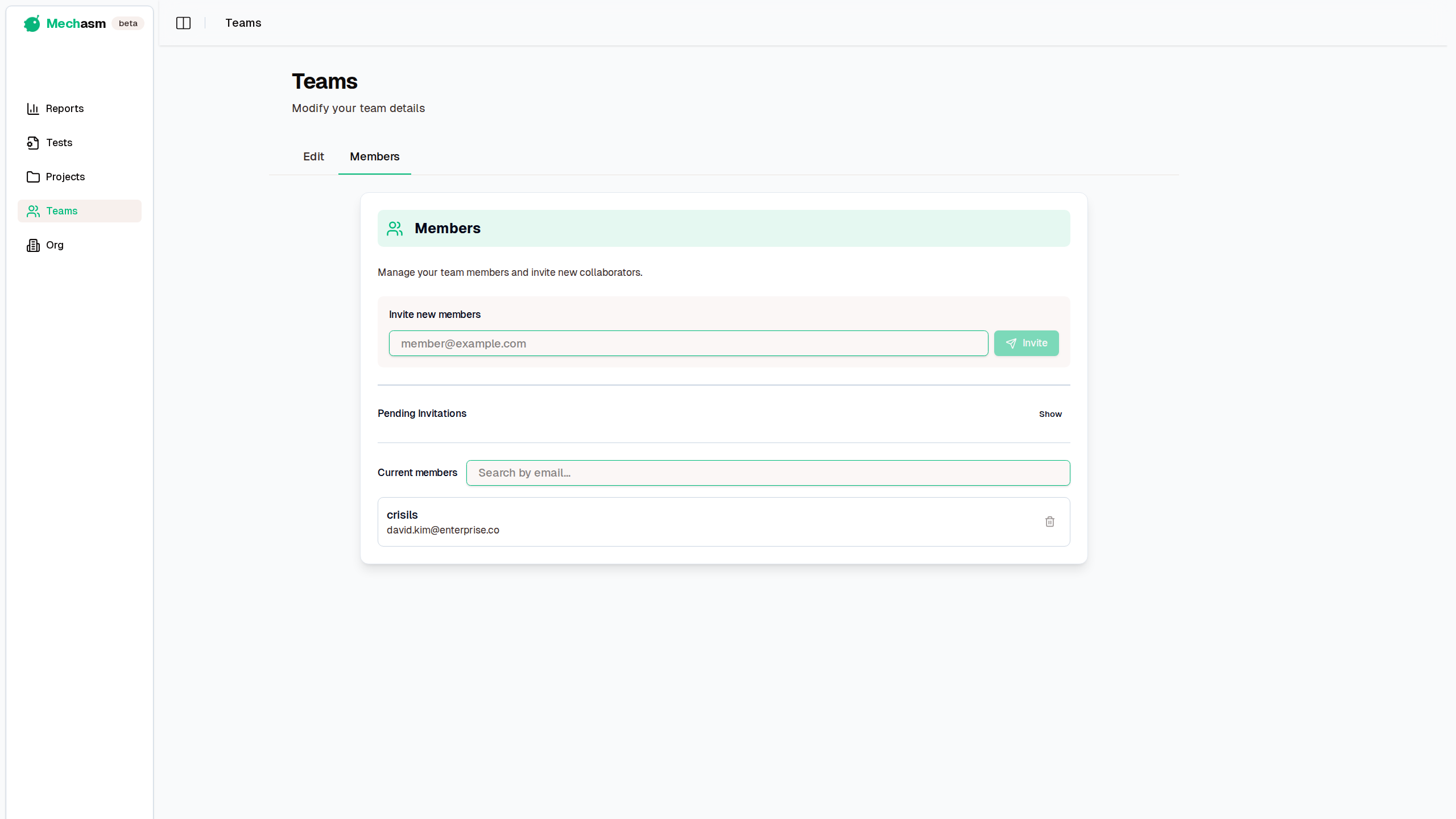
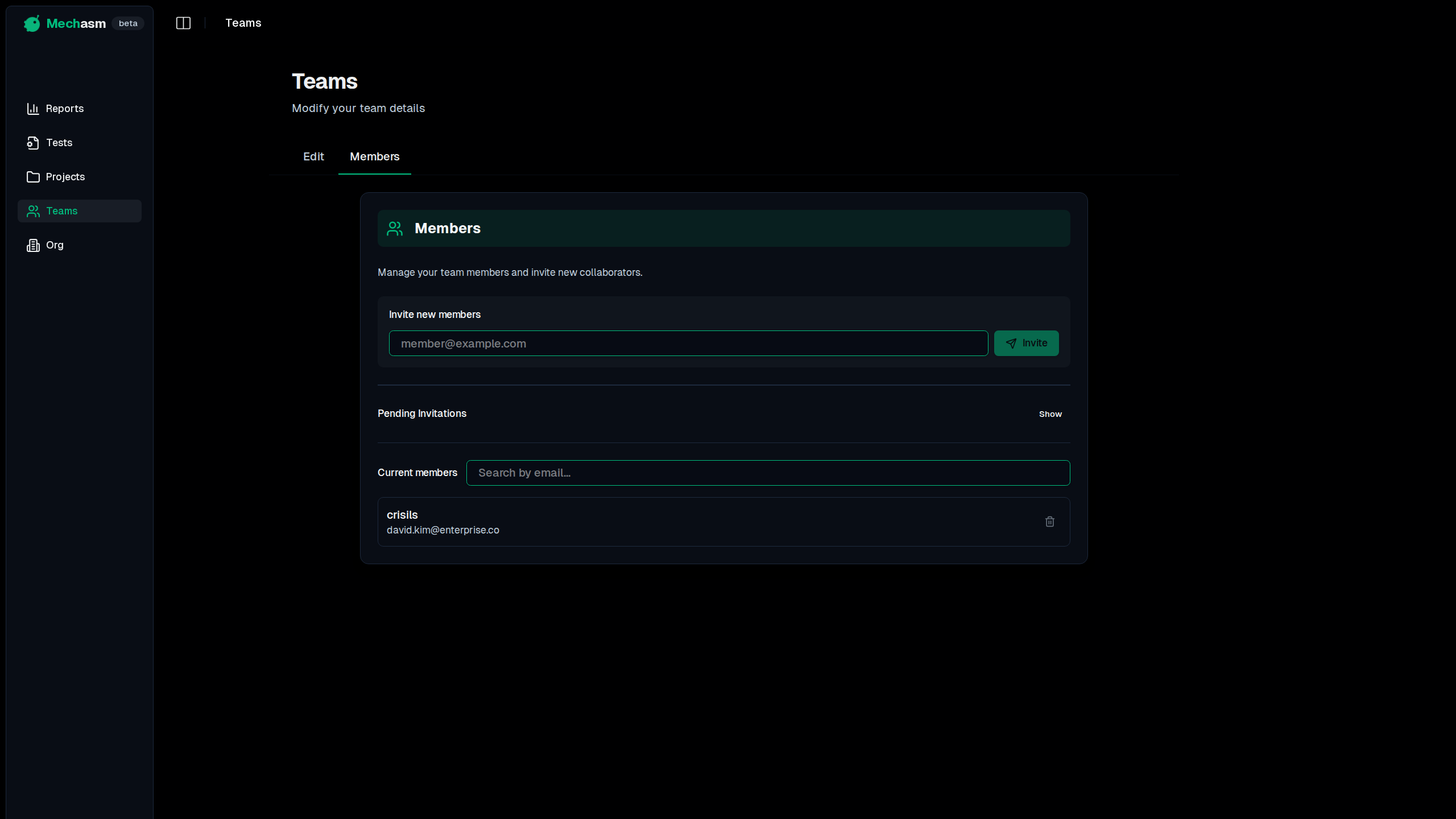
To invite someone to your team:
- Navigate to the Teams section in your dashboard
- Select the team you want to add members to
- Click on the Members tab
- Click the Invite Member button
- Enter the email address of the person you want to invite
- Click Send Invitation
The invited user will receive an email with a link to accept the invitation.
mechasm.ai/dashboard/teams
Managing Pending Invitations
You can view and manage all pending invitations from the Members tab:
- Pending Invitations are shown in a dedicated section at the top of the Members tab
- Each invitation shows the recipient’s email address and expiration status
- You can Revoke an invitation before it’s accepted by clicking the Revoke button
- Invitations expire after 7 days if not accepted
- Expired invitations are visually marked and can be revoked to clean up the list
- You can collapse or expand the Pending Invitations section using the Hide/Show button
Accepting Invitations
When a user accepts an invitation:
- They are added to the team
- If this is their first team, it becomes their default team
- They gain access to all projects associated with the team
- The first project in the team becomes their default project
Users must be logged in to accept invitations. If they don’t have an account yet, they’ll need to create one first.
Invitation Management
Team creators and members can:
- Send invitations to new members
- View pending invitations in the Members tab
- Revoke pending invitations before they’re accepted
Troubleshooting
If an invitation link doesn’t work:
- Check if the invitation has expired (after 7 days)
- Ensure the user is logged in
- Verify the invitation hasn’t been revoked
- Try sending a new invitation
For any issues with team invitations, contact support at [email protected].