
Mechasm supports secure VPN integration to allow your tests to access internal staging environments, private APIs, and resources behind corporate firewalls.
This feature runs each test execution in an isolated network namespace, ensuring security and preventing IP conflicts between concurrent runs.
Supported VPN Types
We currently support the following VPN protocols:
- OpenVPN (
.ovpn) - WireGuard (
.conf)
Enabling VPN Integration
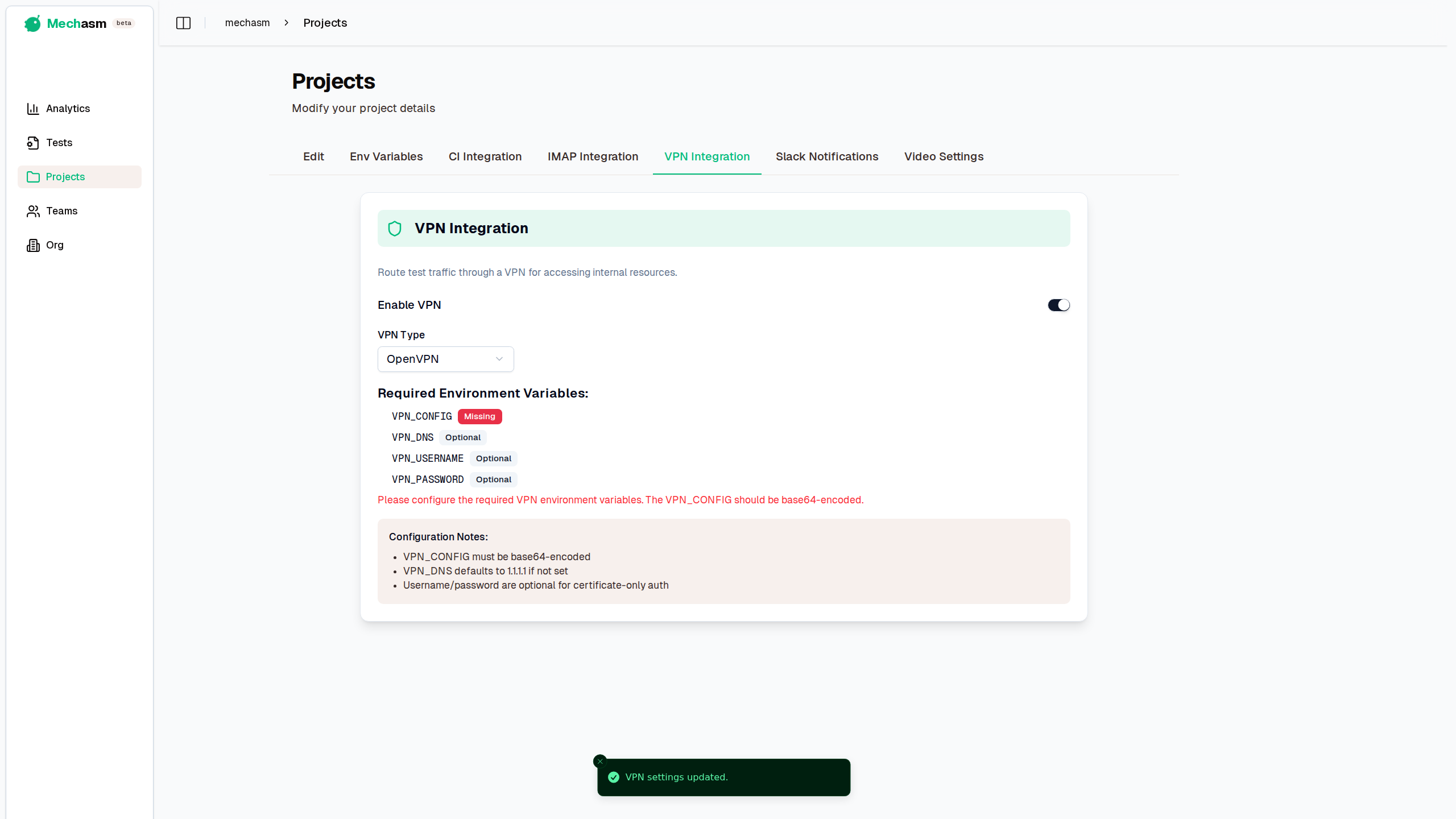
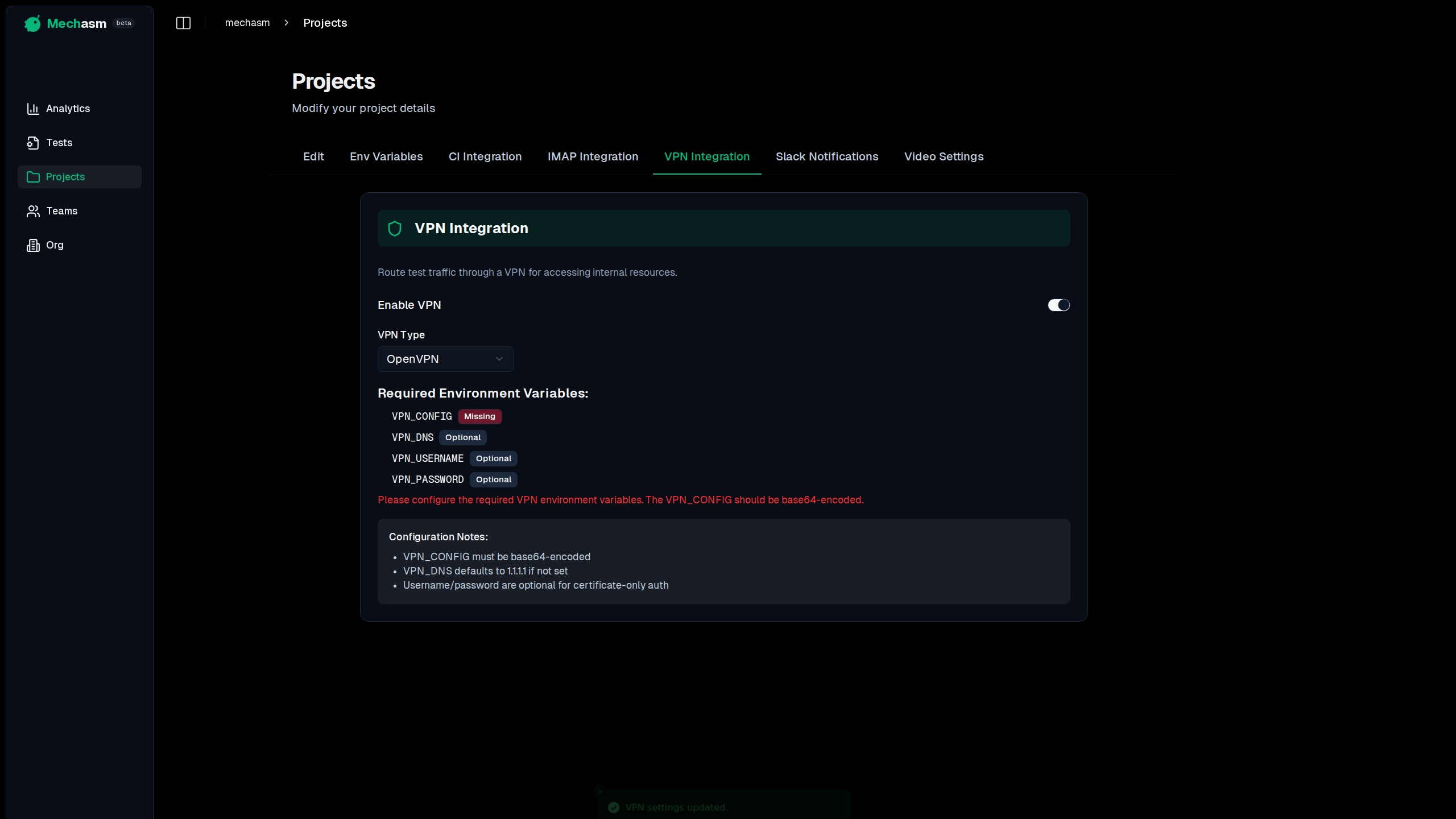
To use VPN features, you must first enable the integration in your project settings:
- Navigate to your Project Settings.
- Select the VPN tab.
- Select your VPN type: OpenVPN or WireGuard.
- Upload the configuration file and add any credentials or custom DNS.
- Select Save VPN settings.
- Toggle Enable VPN.
Configuration
Configure the connection directly in the project’s VPN tab. Mechasm handles file conversion and stores the connection securely for the project.
OpenVPN Configuration
Upload a .ovpn file. Add a username and password only when the VPN server requires them. Custom DNS is optional and defaults to 1.1.1.1.
WireGuard Configuration
Upload a .conf file. Enter the private key only when it is not already included in that file. Custom DNS is optional.
Configuration files must be 1 MB or smaller. Uploading a new file replaces the saved configuration; saving without a new file keeps the current one.
Usage in Tests
Once configured, VPN usage is automatic.
When a test runs for a project with VPN enabled:
- The test runner creates an isolated network namespace.
- It establishes the VPN connection inside that namespace.
- It sets up a secure SOCKS5 proxy to tunnel traffic.
- The browser is automatically configured to use this proxy.
You do not need to add any special commands to your tests. Simply navigate to your internal URLs as normal:
// This works automatically if VPN is configured
await page.goto('http://internal-staging.company.local');
Security & Isolation
- Isolation: Each test run gets its own dedicated VPN connection. Traffic from one test cannot leak into another.
- Cleanup: Connections are automatically terminated and network namespaces destroyed immediately after the test finishes.
- Timeouts: There is a 90-second timeout for establishing the VPN connection to prevent hanging tests.
Troubleshooting
If your tests are failing to connect:
- Replace the configuration: Upload the original
.ovpnor.conffile again if it changed or may be invalid. - Verify DNS: If you use internal hostnames, set the DNS field to your internal DNS server IP.
- Authentication Failed: If using VPN Gate, try a different server or use a TCP configuration (UDP often fails or is blocked).
- Check Logs: The test runner logs will show “VPN setup failed” and include the tail of the OpenVPN log.
AUTH_FAILED: The server rejected your credentials.TLS Error: The server is unreachable or the handshake failed.Cannot resolve host: DNS resolution for the VPN server failed.